
Features
Everything you use day to day in one window: connections, terminals, files, tunnels, host tools, and a command-line tool for AI tools.
Connections and authentication
SSH, Telnet and serial ports: from ordinary servers to old switches and machines behind bastion hosts.
- Type
user@addressto connect right away, without saving a host first. - Authentication: passwords, private keys (OpenSSH, PEM, PuTTY ppk), SSH Agent / Pageant, and interactive prompts such as verification codes.
- Automatic verification codes (TOTP): enter the secret from your authenticator app, and codes are filled in for reconnects, port forwards and key deployment too.
- Profiles and group defaults: many hosts share one user name and credential; change it once and they all follow.
- Multi-hop jump hosts (up to 5), SOCKS / HTTP proxies and proxy commands (like ssh’s ProxyCommand), and agent forwarding.
- Support for old devices that only offer legacy algorithms, for the hosts you tick.
- Can be opened by bastion hosts such as JumpServer and NSFOCUS OSMS: click “Connect” on the web page and it opens in Termlet.
- Host keys are confirmed on the first connection; if one changes, Termlet refuses to connect and explains the risk.
Terminal
Tabs, split panes and workspaces; automatic reconnection, and with tmux you get back the session you had.
- A command palette (Ctrl+Shift+P, or ⇧⌘P on macOS) to find hosts, open tabs and actions, or connect by typing an address.
- Reconnects with back-off (1, 2, 4 … 30 seconds); terminals opened in tmux return to their session after reconnecting, with running programs untouched.
- Duplicate a session over the same connection, without typing the password or code again.
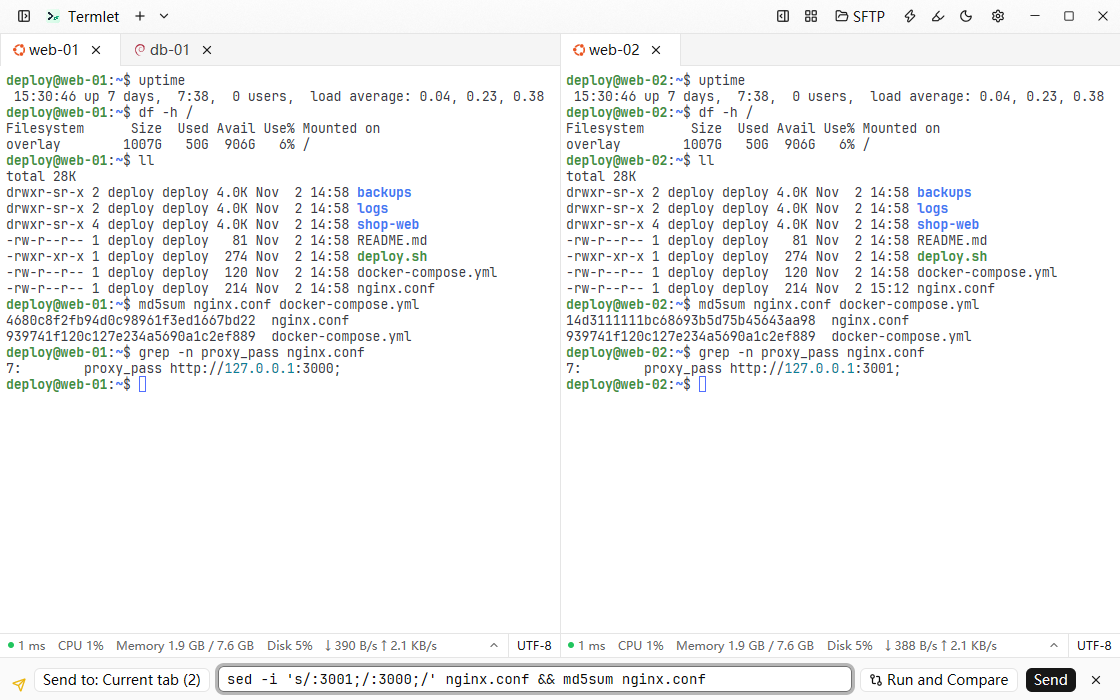
- Sync input: terminals tile into a grid; type in one and every synced terminal runs it.
- Compose bar: write a command, send it to many terminals, then compare the output to find the host that differs.
- Snippets (with parameters) and command history; the history is stored encrypted on your computer.
- rz / sz and trzsz; switch to GBK or Big5 at any time; paste a screenshot and get its path on the server.
- Paste protection: control characters are removed, and multi-line text that would run at once, dangerous commands and invisible characters need your confirmation.
- 26 terminal color schemes, plus import from Windows Terminal, iTerm2, Xshell, MobaXterm and more; keyword highlighting.
- Customizable shortcuts: Ctrl on Windows and Linux, with one-click Xshell and MobaXterm presets; ⌘ on macOS, like Terminal.app and iTerm2.
- The kitty keyboard protocol, so Shift+Enter makes a new line in Claude Code and Codex.
SFTP and files
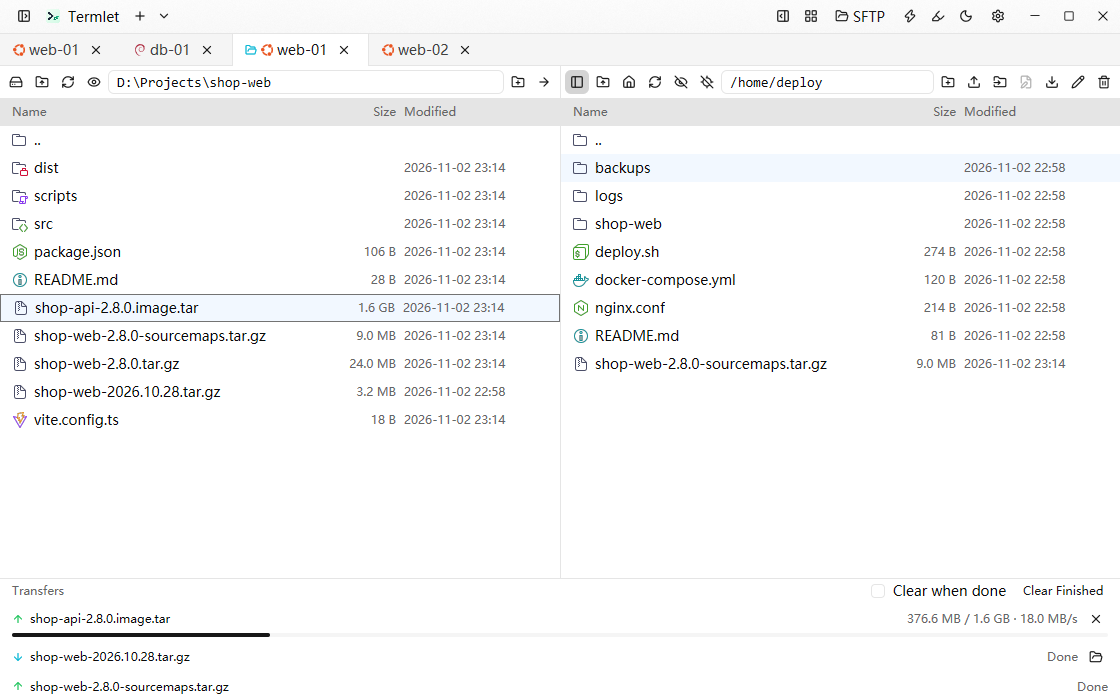
Your computer on the left, the server on the right: drag across to transfer.
- Resumable transfers; when the SFTP connection drops it reconnects, and interrupted transfers carry on.
- Follows the terminal’s current directory (including tmux and nested shells).
- Double-click to edit remote files: saving replaces the file atomically and keeps its permissions and line endings.
- Change permissions (including SUID, SGID and the sticky bit), for a folder’s contents too.
- Open SFTP as root (through sudo) to edit places such as
/etcthat only root can write. - Remote file names can be shown as GBK or Big5.
- Files inside WSL distributions use the same interface.
Local terminals
Local shells (plus WSL distributions on Windows) and remote hosts in the same window.
- On Windows, detects PowerShell 7, Windows PowerShell, Command Prompt, Git Bash, MSYS2, Cygwin, Visual Studio Developer PowerShell and WSL distributions.
- On macOS and Linux, lists your login shell and bash, zsh, fish, nu, pwsh and others from
/etc/shells, all started as login shells. - Add your own local terminals (command line, starting folder, environment variables).
Keys and port forwarding
Keys in one place; tunnels when you need them.
- Key library: import (OpenSSH, PEM, PuTTY ppk), generate Ed25519 or RSA keys, view public keys and fingerprints, and deploy to many hosts at once.
- Local, dynamic (SOCKS) and remote port forwarding; local ports keep listening while reconnecting; rules can start with Termlet.
- Add a forward for the current host while connected; local forwards can list the ports the server is listening on.
Host tools
They follow the current terminal and read over its connection, with no second login (Linux servers).
- Processes: sort, search, view details, end processes.
- systemd services: start, stop, restart, enable at boot, view and follow logs.
- Docker (or Podman when Docker is missing): containers, images, volumes and networks.
- Network connections and listening ports; forward a listening port to your computer in one click.
- Network latency and the server’s CPU, memory, disk and load below the terminal.
Command-line tool and AI
AI tools such as Claude Code and Codex use your saved servers through the termlet command, while credentials never leave Termlet.
- Off by default; tick “Allow Termlet command-line access” host by host, and optionally give the command-line tool its own low-privilege account.
- Dangerous-command rules: 15 built in, plus regular expressions of your own; on a match Termlet asks you to approve, and nothing runs if you deny or don’t answer within 60 seconds.
- The audit log records every call: the command, result, exit code, duration and the caller’s process chain, searchable and exportable.
exec --terminalruns the command in a terminal you already have open, where you can see it; it also works for servers behind bastion hosts.- Install the Agent Skill in one click for Claude Code, the shared folder (read by Codex, Gemini CLI, Cursor and others) or WorkBuddy.
termlet ls                                    # list hosts that allow command-line access
termlet exec web-01 "systemctl status nginx"  # run a command; its exit code is passed through
termlet upload web-01 ./app.tar.gz /tmp/      # upload a single file
termlet download web-01 /var/log/syslog .     # download a single file
termlet skill install                         # install the Agent Skill (Claude Code by default)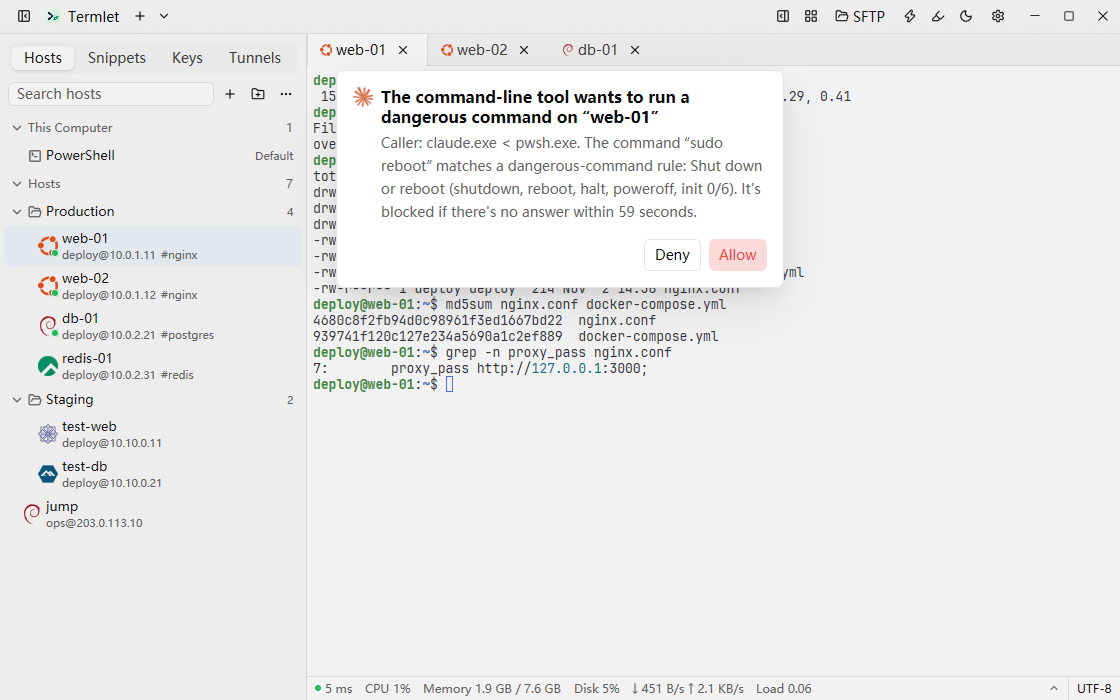
Security
Credentials are encrypted, hosts are verified before connecting, and you can lock it when you step away.
- Passwords, private keys, verification-code secrets and other credentials are encrypted with AES-256-GCM; the master key is in the system keychain (Windows Credential Manager, the macOS keychain, the Secret Service on Linux).
- An app lock (a lock password, or Windows Hello on Windows) so nobody can use your open Termlet while you are away.
- Logs never contain passwords, private keys, verification codes or commands; diagnostics leave out host addresses and credentials.
Import, backup and sync
Move over from other clients, and keep several computers in step.
- Import from
~/.ssh/config, Xshell, FinalShell, MobaXterm, Tabby, Termora and WindTerm, with a preview where the same host can be merged or skipped. - Export hosts as a Termlet host file (optionally encrypted, with credentials) or as
ssh_config. - Encrypted full backups (Argon2id + AES-256-GCM) that restore on a new computer or after reinstalling; daily local snapshots.
- Sync between computers through a cloud-drive folder or WebDAV, end-to-end encrypted and merged item by item, never through Termlet’s servers.
Interface and updates
Light by default and ready to use.
- Simplified Chinese, Traditional Chinese and English; light, dark, or follow the system.
- A host tree in the sidebar: groups, tags, search and favorites, rearranged by dragging; groups start collapsed, and the ones you expand stay expanded after a restart.
- After connecting, Termlet identifies the remote system and shows its logo in the host tree and on tabs; file icons and these logos come in color or monochrome.
- Automatic updates, installed only after their signature checks out; on macOS and Linux, Termlet just tells you and opens the download page.
Not there yet
- macOS is Apple silicon only, and Linux is x64 only, as a tar.gz (no deb, rpm, AppImage or Flatpak).
- The macOS and Linux versions pass CI’s automated tests but haven’t been tested on real hardware yet; please report problems on GitHub.
- The macOS and Linux versions don’t install updates themselves and have no Windows Hello unlock or WSL.
- On macOS, Option can’t act as Meta, Termlet quits when its last window closes, and there are no Xshell or MobaXterm presets.
- On macOS, quitting from the Dock or when shutting down doesn’t first ask about open connections and transfers (⌘Q does).
- The packages aren’t code-signed yet; the macOS one isn’t notarized and has to be allowed under System Settings → Privacy & Security the first time.
- No RDP / VNC and no plugins; Termlet itself has no built-in AI assistant and calls no AI models.